Get started working with expressions in After Effects. No prior experience with code required, and in a few minutes you'll be ready to work on your own to create new expressions and learn how to use functions you need as you go along.

AE: Using Text Animators
The expression mentioned:
if(textIndex % 2 > 0){selectorValue}else{-selectorValue}
AE: Building a Selection Box shaped by 2 Nulls with Expressions

We'll have 2 null objects in the scene that will define the corners of a box. Just like the clicks in creating a rectangle with the marquee tool, the first null defines the origin, and the other is the direction the box goes in. Take this as an exercise in understanding how expressions work with different properties, and hey, you could learn something useful.
So, let's figure this out.
Expressions Library

Welcome! Here you'll find pre-written expressions that you can copy into your projects. I've done my best to explain how they work! I'll update this post as often as I find new and useful expressions.
And remember to Save before applying.
You have been warned!
AE | Build a Monuments Timeline with Shape Layers and Expressions
 |
| Hopefully this has had enough time to load |
We'll look at how to build a never ending timeline (or scale) that you can move around to any amount without hitting the edges using Expressions and a built-in effect, how to create the counting time, fast and easy method to extract the monuments and some tips on positioning comps while animating.
AE | 7 Useful Functions in the Render Queue
Ah, the Render Queue. After Effects' method of pushing out your compositions to movies.
It's pretty straight forward to use, but it also has some powerful and very useful features tucked into it. So, let's take a look at the Render Queue.
All About Expression Controls

Expression Controls are effects that don't seem to do anything to our compositions! But they work as UIs for expressions we create. In this post, we'll take a look at each individual control and see what it can do and how to make use of it.

Change Multiple Comps from a Single Master Composition with Expressions

Okay, here's the scenario, an editor has created promotional material for a few shows. The channel he's working on has specific graphics that I need to make. So, I need to make, for each show, a graphic that shows the name of the show and different versions that say "Tonight at [specific time]", "Next Week", "This Week", "Coming Soon" and so on. Here's how one of them looks:

The problem is there's 6 versions and 4 shows, 24 comps in total. I can't keep rendering, changing text, rendering; it is kinda tiresome and is more prone to mistakes!
This tutorial will take a look at how to set-up your project so all you have to do is change ONE composition and create all 6 variations per show in one go. So technically, I only have to change and render 4 times, as compared to 24.
As always, this technique can be used for anything that requires batch editing and rendering, so adjust it for your specific uses.
AE | Expression Driven Gauge - Part 2

In the first post, we looked at building the base and setting up the numbers, now we're gonna make the Master control and get the bar to change colors.
AE | Expression Driven Gauge - Part 1
Expressions!! Expressions can be used to control various properties of a layer but their use if quite situational. It really depends on how you intend to use your composition. This will affect the approach you take as well as whether it's necessary to use an expression at all. I think the best way to illustrate this is to use a real-world example: a gauge!
So, we're going to make a "Core Temp" gauge as in the header above. It's pretty simple, right, but we're mainly going to focus on the decisions we make about the expressions driving the different elements that make up the gauge, and how we're going to set up the entire composition to be 'expression-friendly'.
PHOTOSHOP | Road to Home Photo Manipulation

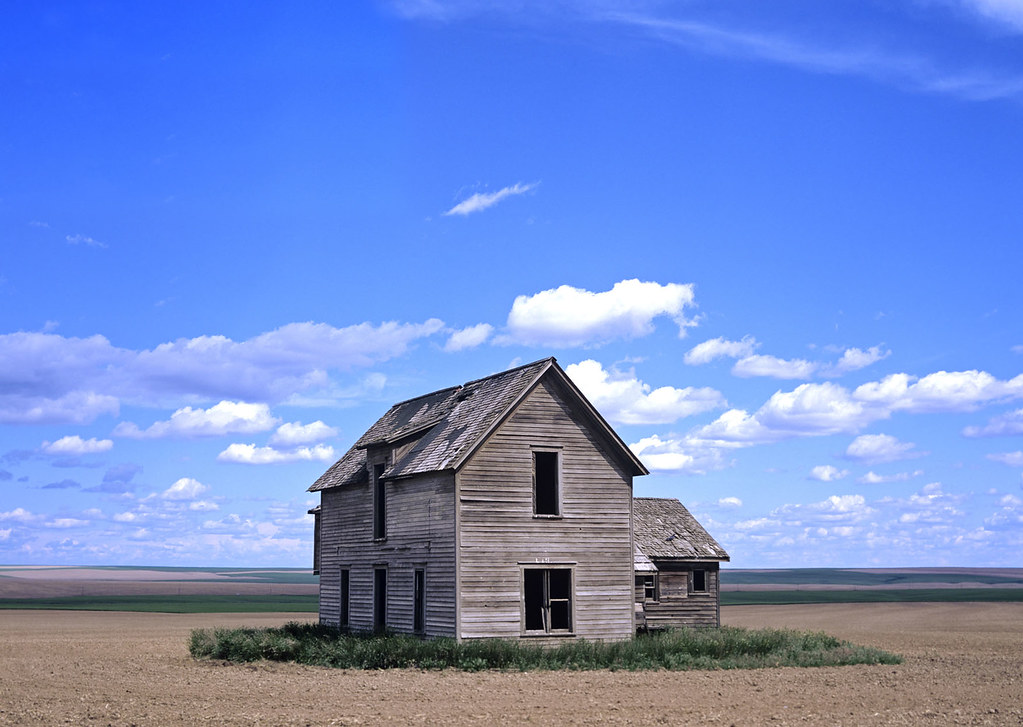
We're gonna be using Photoshop and 4 images to create a the below photo manipulation. We'll mainly focus on blending the colors and the contrast of the different images to get the final result, the most important step. Click the title to see the tut. You can click the image to view it larger.


Multipass Compositing with Cinema 4D and After Effects 04

Check Previous Posts
Okay, so we brought everything into AE and set up our workspace. Now, what do we gain from using multipass? Let's take a look:
AE Quick Tip 04 | Isolate Layers for Masking
Here's a quick tip on isolating layers that have effects and have been transformed so you can mask them without obstruction:
More on Youtube
AE and C4D Tips on Twitter and Facebook
More on Youtube
AE and C4D Tips on Twitter and Facebook
Subscribe to:
Posts (Atom)